The 7 Most Common Home Wi-Fi Security Mistakes (And How to Fix Each One)
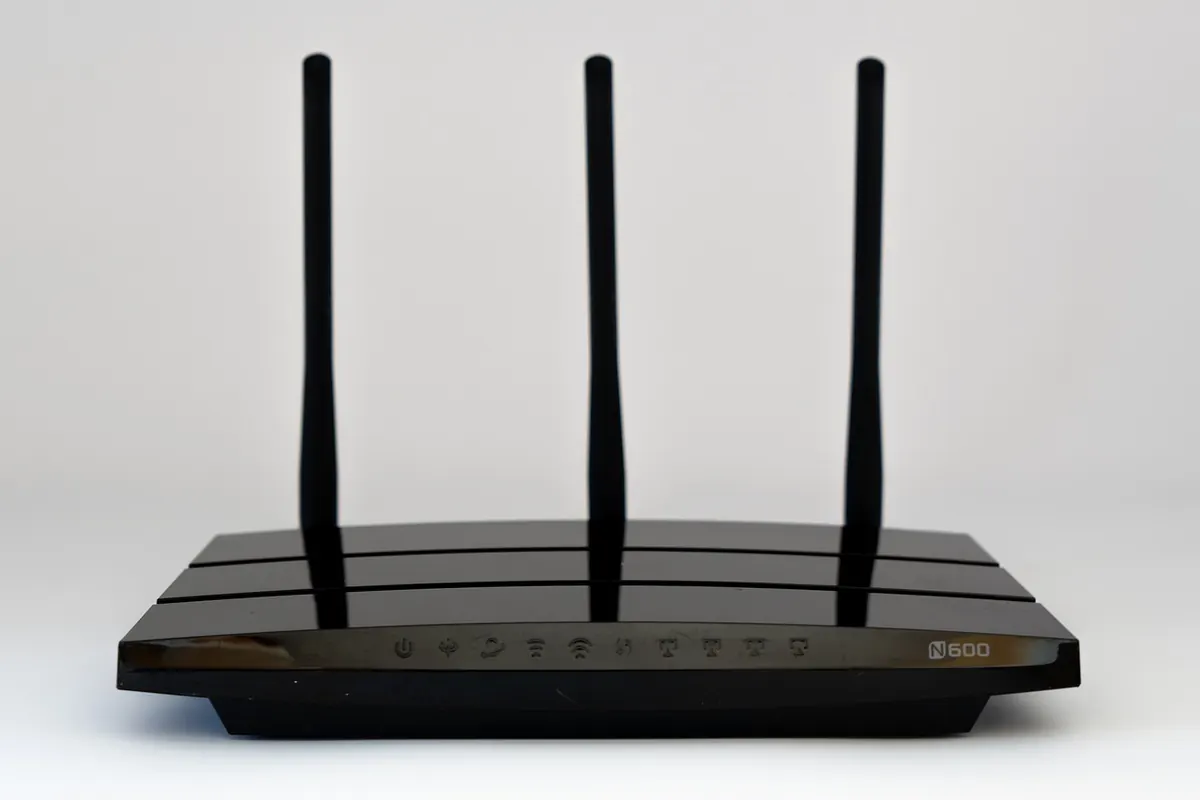
Most home networks don't get broken into by a determined attacker with custom tools. They get broken into by someone who tried the password printed on the sticker, or who found the router still broadcasting a network name that tells them exactly which model to look up. The gap between "connected" and "secure" is usually a handful of settings nobody ever opened.
The fixes below take an afternoon at most, cost nothing, and close off the routes that get used again and again. Work through them in order if you like, or start with whichever one makes you wince.
1. Running the router on factory settings
Out of the box, almost every router ships with an admin username and password that are either identical for every unit or printed on the casing. Anyone who reaches the login page — which is often reachable from inside your network — can try admin/admin, admin/password, or whatever the manual says. Change the admin password first. Make it different from your Wi-Fi password, store it somewhere you'll find it again, and don't reuse the one from your email account.
While you're in there, rename the network. A default SSID like TP-LINK_4A2F or ARRIS-8B7C tells a passer-by the make and model of your router, which points them straight at whatever flaws that model is known for. Pick something that doesn't contain your surname, flat number or address.
2. Using weak encryption or a guessable passphrase
Check the security mode
In the wireless settings you'll usually see a dropdown labelled Security or Encryption. WPA3 is the current standard and the best option if your devices support it. WPA2 with AES (sometimes shown as WPA2-PSK, AES-CCMP, or "WPA2 only") is the reliable fallback. What you don't want is WEP, plain WPA, TKIP, or a mixed mode that keeps TKIP alive for the sake of one old device — those are long past their useful life and shouldn't be trusted with anything you care about.
Make the passphrase long rather than clever
Length does more work than symbols. A string of four or five unrelated words is easier to type on a phone than P@ssw0rd! and far harder to crack. Skip the dog's name, the street, the year you were born, and the football team. Anything someone could find on your social profiles is not a password, it's a guess with extra steps.
- Minimum 14 characters; more if you can stand typing it.
- No names, dates, addresses or favourite bands.
- Different from your email, banking and router admin passwords.
- Changed whenever someone who had it moves out of your life.
3. Leaving WPS and remote access switched on
WPS was designed to let you join a network by pressing a button or typing an eight-digit PIN. The PIN version has a design weakness that lets a determined attacker recover it in a few thousand attempts rather than millions — a job measured in hours, not years. Turn WPS off. If your router insists on keeping the push-button method, understand that it briefly opens the door to anyone in range who presses their own button at the right moment.
Two more features deserve a look while you're logged in:
- Remote management (also called web access from WAN, or cloud management). It exposes your router's login page to the whole internet. If you don't use the vendor's app from outside the house, switch it off.
- UPnP. Convenient for games and consoles, but it lets any device or app on your network open a port to the internet without asking you. If you don't need it, disable it and forward the specific ports you actually require.
4. Never touching the firmware
Routers don't nag you about updates the way a phone does, and many ship with automatic updates disabled. Log in, find the firmware or administration section, and check the version. Update it if there's something newer, then turn auto-update on so you don't have to remember.
ISP-supplied gateways are worth a call to your provider if the update option is greyed out — they can often push it remotely. And if your router stopped receiving updates years ago, that's the honest signal to replace it. A router without security patches is a permanently open window, no matter how good your password is.
5. Treating every connected device as trustworthy
Smart plugs, cameras, doorbells, TVs and robot vacuums are cheap computers with patchy security. Once one is on your main network, it can reach your laptop, your backups and your shared folders. Most routers let you create a guest network, and that's exactly where these devices belong. They keep working normally, and if one gets compromised, it lands in a network segment with nothing interesting on it.
Also switch off the features you never deliberately turned on: USB or file sharing, DLNA media servers, FTP, Telnet, and any cloud account the router offers that you haven't set up. Every one of those is a service that has to be maintained. If you're not using it, it's just surface area.
6. Handing out the Wi-Fi password like a business card
Every person who has your Wi-Fi key can see the other devices on that network and, with the right tools, watch unencrypted traffic. That doesn't mean you have to be unfriendly — it means visitors belong on the guest network, which you can change or disable later without disturbing anything in your home. Don't tape a QR code for the Wi-Fi to the fridge either; anyone who walks past your kitchen can photograph it.
Two habits to drop if you've picked them up: hiding the SSID, which stops casual browsers but not anyone with a scanning tool, and MAC address filtering, which is trivially bypassed by anyone who can read a device's address from the air. Neither adds real protection and both create maintenance headaches.
A twenty-minute tune-up you can do today
- Log in to the router and set a new admin password.
- Switch encryption to WPA3, or WPA2 with AES at minimum, and set a long passphrase.
- Turn off WPS, remote management and UPnP if you don't use them.
- Update the firmware and enable automatic updates.
- Create a guest network and move smart devices onto it.
- Write the date in your calendar and repeat the check every few months, or after anyone moves out.
If you don't have access to the router settings because your landlord or provider controls it, ask them directly for those changes — it's a reasonable request and a quick one on their side. And if you suspect someone has already been on your network, change both the Wi-Fi and admin passwords, update the firmware, and then work through the accounts you access from those devices, starting with email.
None of this is exotic. It's the equivalent of locking the back door, and it stops the overwhelming majority of the trouble you're likely to meet.
Photo: USA-Reiseblogger / Pixabay